
Updating WSL on Login
It's not a better way, it's just a different way
Some years ago, questions were asked on social media, an answer was provided, Scott Hanselman expanded on it a little, and I then implemented it on my machine.
And then for reasons (mostly of the “Because I can” and “It didn’t feel like a bad idea” varieties) I had two WSL distributions running. Which meant more steps were needed to run the updates:
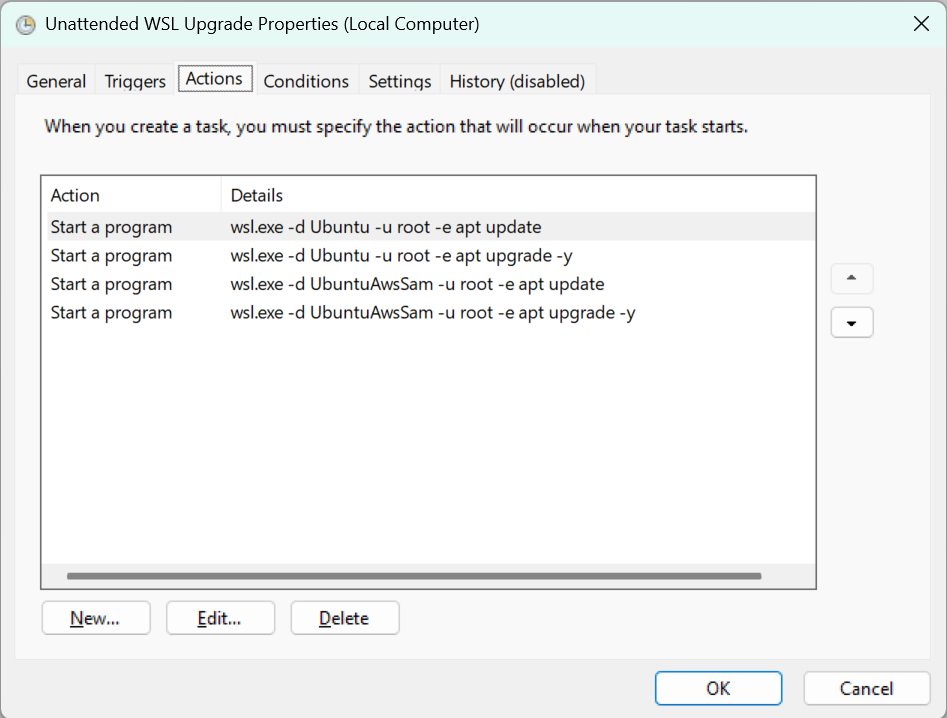
And this is… fine… It works. Depending on how precisely you configure the job itself the job will be run, and the distributions will be updated. The major problem is that to see what happens you need to catch the terminal windows as they open, and quickly scan the output before it is closed. You could try and configure the the command to keep the windows open, but then you need to close them everytime. And to be honest, I only want to see what’s going on every-so-often.
Or we could try doing something else 🤔. Maybe a fancy-pants Powershell script? 😀
Requirements
My requirements for the script are pretty straight-forward:
-
The ability to exclude distributions from the update process.
As noted by Scott, there are certain distributions that shouldn’t be updated - mostly docker related. From my perspective I also wanted the ability to update any distribution on the machine, so settled on an exclusion list.
- Log the output of the update process to distribution specific log files, as well as a process overview log
- Automatically manage the log files so that only ten files are kept around for each distribution (and the process overview)
In the future I may want to extend the script to run arbitrary per-distribution commands, but for now I don’t need that.
Making wsl.exe output work in Powershell
Given these requirements my starting point (because I was just hacking around) was to have the script get the names of the installed distributions. Happily wsl.exe lets you do this easily:
wsl -l -v
And this gives you output similar to the following:
  NAME              STATE           VERSION
* UbuntuAwsSam      Running         2
  Ubuntu            Running         2
  Ubuntu-24.04      Stopped         2
  docker-desktop    Running         2
“Great! This is easy!” thought I pushing some simple code together:
$wslOutput = wsl -l -v
$wslOutput -split "`r?`n" | Where-Object { $_ -like '*Ubuntu*' } | ForEach-Object { Write-Host "Line: $_" }
Which produced no output. Oh noes! 😱
Some digging around turned up the StackOverflow Question: Powershell - Strange WSL output string encoding. So changing my script:
$env:WSL_UTF8=1
$wslOutput = wsl -l -v
$wslOutput -split "`r?`n" | Where-Object { $_ -like '*Ubuntu*' } | ForEach-Object { Write-Host "Line: $_" }
Now results in output I was expecting, yay! 🎊
Line: * UbuntuAwsSam      Running         2
Line:   Ubuntu            Running         2
Line:   Ubuntu-24.04      Stopped         2
This is reflected in the final script:
# Backup and set WSL_UTF8
$oldWslUtf8 = Replace-EnvVar -Name 'WSL_UTF8' -NewValue 1

# Set output encoding workaround (see StackOverflow link)
$oldOutputEncoding = [Console]::OutputEncoding
[Console]::OutputEncoding = [System.Text.Encoding]::UTF8
In writing and testing the script I found that as suggested setting the console output encoding was necessary. And because we’re good people we clean up:
try {
    ...
}
finally {
    # Restore output encoding
    [Console]::OutputEncoding = $oldOutputEncoding
    # Restore the old value of WSL_UTF8
    Restore-EnvVar -Name 'WSL_UTF8' -OldValue $oldWslUtf8
}
Environment variable manipulation functions
Powershell provides two core routes to environment variables $env allows environment variables to be treated as Powershell varibales (to an extent), while the env: drive allows environment variables to be accessed as paths, e.g. Get-ChildItem env:path. To regularise accessing environment varibales in the test wrapper script and the main script I created some wrapper functions that are shared with both scripts.
Managing old logs
After many years in IT I know the value of a log file. But I also know that unchecked they can cause issues. Therefore it was important to me to manage the generated log files. Because this is powershell, this part turned out to be easier than expected:
$skipLogs = Get-ChildItem -Path $logFolder -Filter 'Wsl update *.log' | Sort-Object Name
if ($skipLogs.Count -gt 10) {
    $toDelete = $skipLogs | Select-Object -First ($skipLogs.Count - 10)
    $toDelete | Remove-Item -Force
}
The first line gets a list of the relevant log files (in this case the overall process log), and then sorts the files. Because I am using a the date in a specific string format:
function Get-DateString {
    return (Get-Date -Format 'yyyyMMddHHmmss')
}
The oldest file will be first, then next oldest, etc. If there are more than 10 log files then the first file count - minus ten files are selected, and then passed (via pipeline) to Remove-Item.
Configuring the script as a Scheduled Task
Because this is a script that is primarily aimed at to be run as a scheduled task I decided that variables should be resolved from environment variables, rather than passed as parameters to the script. This caused problems with being able to test the script itself, but after some thinking and searching I alighted upon using a wrapper script to set the requisite values. This is configured into the launch.json allowing the main script to be debugged:
{
    "name": "PowerShell - Launch ps-wslupdate.ps1 Script",
    "type": "PowerShell",
    "request": "launch",
    "script": "${workspaceFolder}/debug/wslUpdateWrapper.ps1",
    "cwd": "${workspaceFolder}/src/",
    "args": [
        "-ScriptPath",
        "${workspaceFolder}/src/ps-wslupdate.ps1",
        "-WSLSkipDist",
        "Ubuntu-24.04:docker-desktop",
        "-WSLUpdateLog",
        "${workspaceFolder}/logs/"
    ],
}
For “production” use, the environment variables are configured:
| EnvVar Name | Description |
|---|---|
WSL_SKIP_DIST |
A colon (:) seperated list of names of distributions that should not be updated. A list of names can be obtained by executing wsl -l -v. If the variable is not present or is empty all distributions will be updated. |
WSL_UPDATE_LOG |
An absolute path to a folder that log can be written to. |
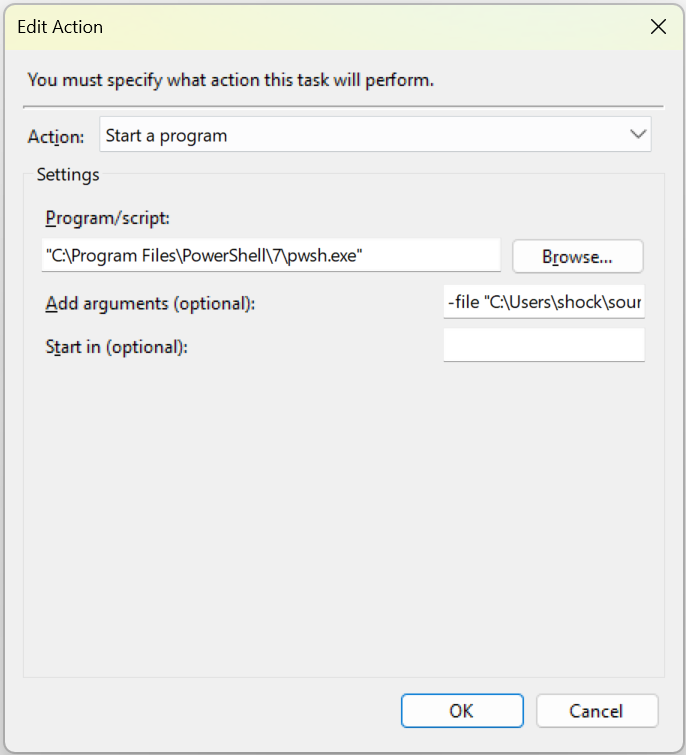
To execute the script we need to run it through Powershell (pwsh), and the path and name of the script is supplied in the -file parameter:
Extending the script
The execution of the update takes just three lines of Powershell:
$updateCmd = "wsl.exe -d '$distro' -u root -- bash -c 'apt update && echo && apt upgrade -y'"
$output = Invoke-Expression $updateCmd 2>&1
$output | Out-File -FilePath $logFile -Encoding UTF8
The first line constructs the command to be executed; don’t forget - we’re in a powershell script, asking WSL to execute a command in a distribution. The $distro parameter is comes from the list of distributions parsed earlier. The second line executes the command and collects the output in a variable. The final line outputs the collected output to the per-distribution log file. The name and path for the log file at determined earlier in the script.
BAsed on this it should be possible to extend out the first line so that more complex commands are embedded in $updateCmd. It should also be possible to execute a script from here, but bear in mind that the script would need to exist within the distribution and the root user would need to have execute privileges to the script.
Summary
ps-wslupdate/src/ps-wslupdate.ps1 provides a means to automate the updating of most WSL distributions via a scheduled task. Distributions can be excluded via the WSL_SKIP_DIST environment variable, and logs are output to the directory provided in WSL_UPDATE_LOG, with the directory being managed by the script to maintain a history for ten executions.